How to extract text from a screenshot on Mac
Two methods. Built-in: open the screenshot in Preview or Photos, click and drag to select text, then ⌘C. This is Apple's Live Text, available since macOS Monterey. Automatic: install Maus — every screenshot you copy is OCR'd in the background and the recognized text is saved alongside the image, searchable and pasteable.
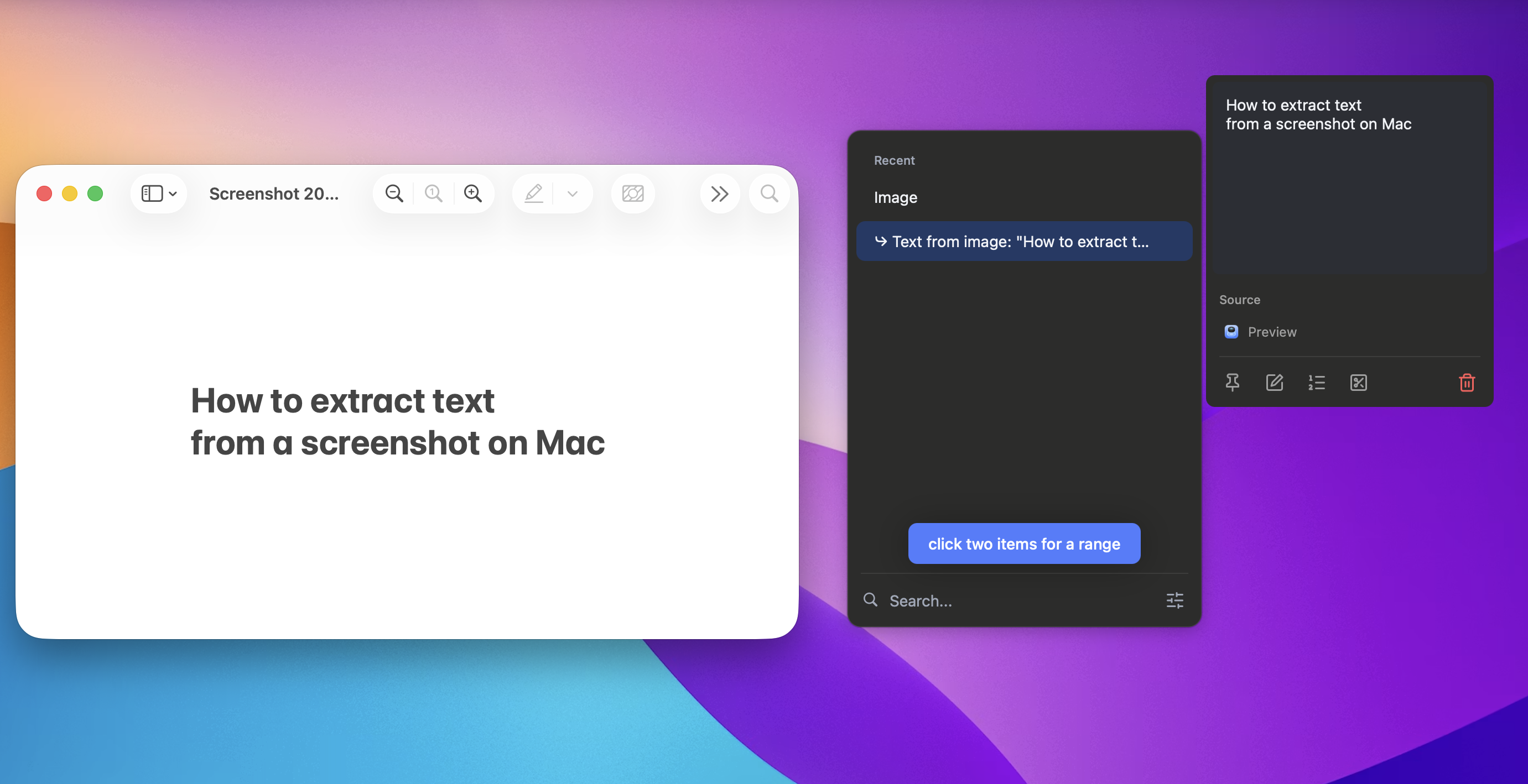
Method 1: macOS Live Text (built-in)
Apple has shipped on-device OCR since macOS 12 Monterey under the name Live Text. It works in Photos, Preview, Quick Look, and Safari, and it runs entirely on your Mac with no internet required.
Step-by-step with Preview
- Open the screenshot by double-clicking the image file (it opens in Preview by default).
- Click and drag over the text in the image. If the text is recognizable, your cursor changes to a text-selection cursor and the text highlights.
- Press
⌘Cto copy the recognized text. Paste it anywhere with⌘V.
Step-by-step with Photos
- Open the image in the Photos app.
- Hover over text in the image. A small "Live Text" indicator appears in the bottom-right corner of the photo when text is detected.
- Click that indicator to highlight all detected text, or click and drag to select specific text.
- Right-click → Copy, or press
⌘C.
Step-by-step with Quick Look
- Select the image file in Finder and press Spacebar to open Quick Look.
- Click and drag to select text directly in the preview.
⌘Cto copy.
Method 2: automatic OCR with Maus
Live Text is great when you remember to use it. The problem is the workflow — you have to open the image, manually select the text region, and copy. If you process screenshots all day (devs, designers, support teams, vibe coders), that adds up.
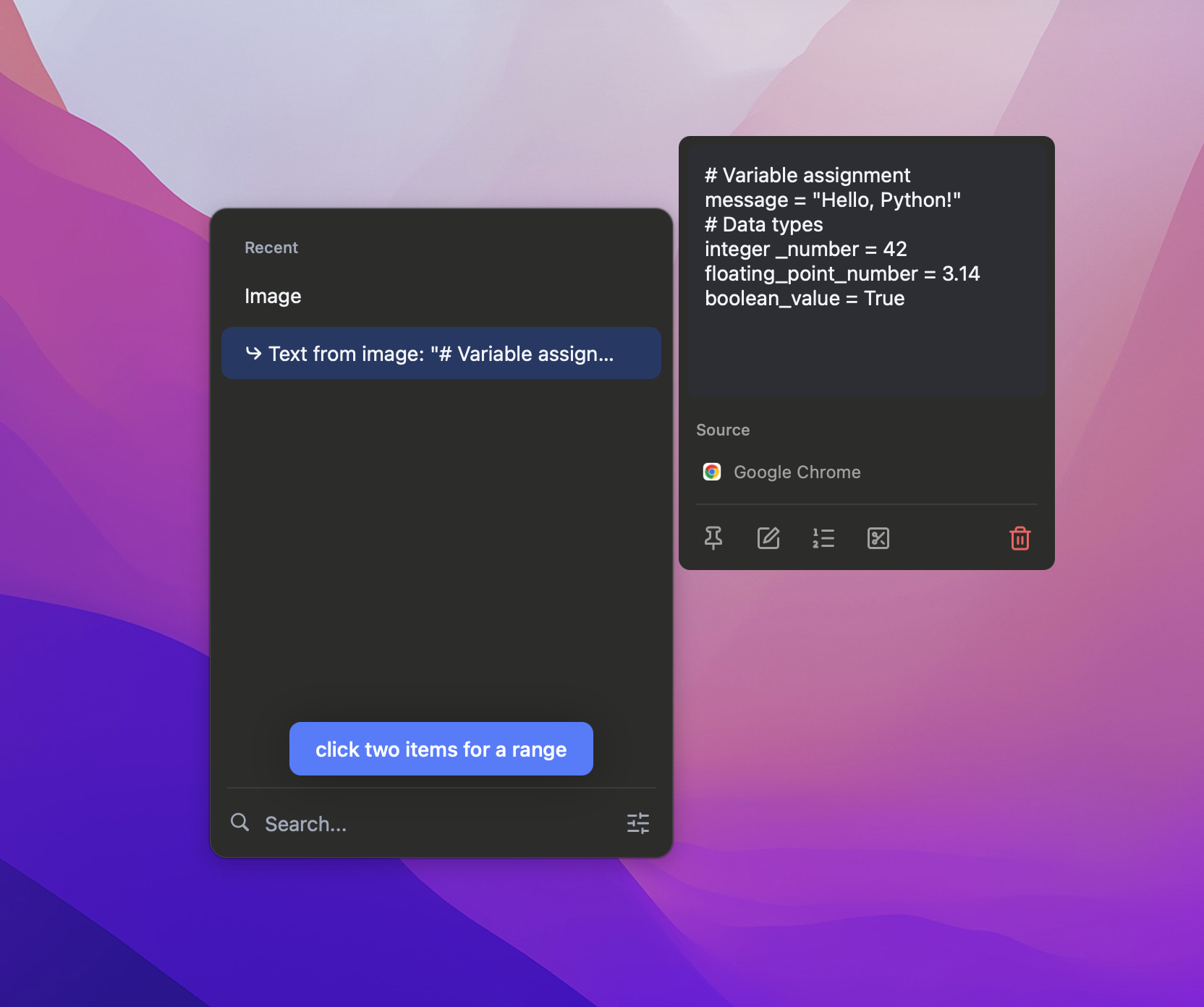
Maus solves this by running OCR automatically on every screenshot you copy. The recognized text is stored alongside the image in your clipboard history. Both versions are searchable and pasteable later.
Step-by-step with Maus
- Install Maus from mausformac.com (free).
- Take a screenshot normally with
⌃⌘⇧4(which copies to clipboard, doesn't save to desktop). - Done. Maus has captured the image AND extracted the text. The OCR result appears as a child item right below the image in Maus's history.
- Press
⌘⇧Vto open Maus. Search the recognized text. Paste either the image or the text — your choice.
The OCR runs locally using Apple's Vision framework. No internet, no cloud, no account.
Live Text vs Maus OCR
| Live Text (built-in) | Maus (automatic) | |
|---|---|---|
| Trigger | Manual: open image, select text | Automatic: every copied screenshot |
| Where it works | Preview, Photos, Quick Look, Safari | Anywhere — the screenshot lives in your clipboard history |
| Searchable later | No — the text isn't stored | Yes — search recognized text across all past screenshots |
| Survives copying another item | No — clipboard overwrites | Yes — kept in clipboard history |
| Languages | 15+ supported by Apple Vision | Same 15+ (uses Apple Vision) |
| Privacy | On-device, no internet | On-device, no internet |
| Cost | Free (built into macOS) | Free with Maus |
Both use the same underlying recognition engine (Apple Vision). The difference is workflow. If you only need to grab text from an image once a week, Live Text is fine. If screenshots are part of your daily flow, automatic OCR turns them into searchable text without you thinking about it.
Common use cases for screenshot OCR
Code from screenshots
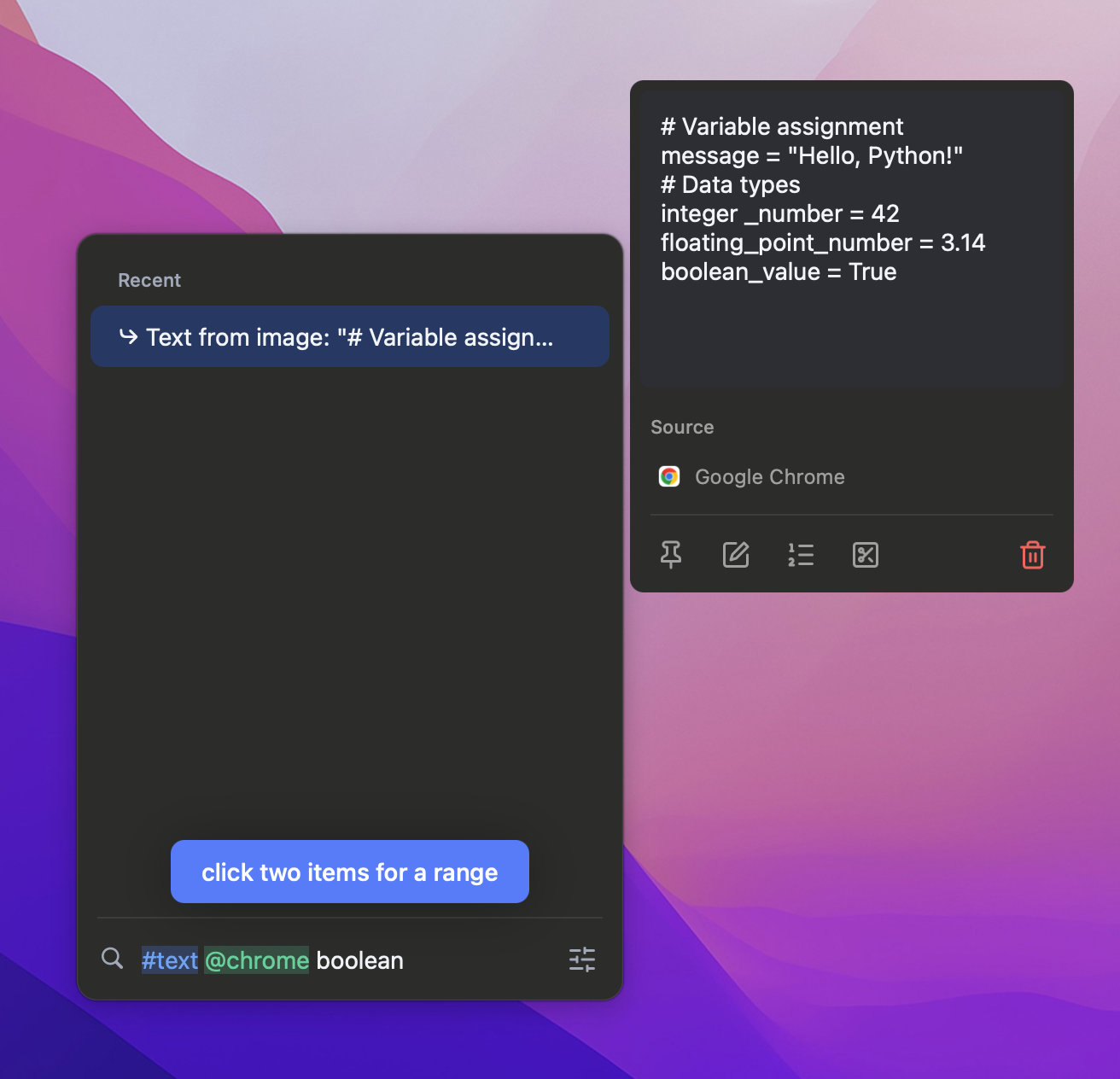
Someone shares a code snippet as a screenshot in Slack, Discord, Twitter, or a conference talk. Instead of retyping, capture the screenshot — Maus OCRs it, and the code is in your clipboard ready to paste into your editor.
Error messages from teammates
A teammate sends "look what just happened" with a screenshot of a stack trace. The error message is in your clipboard history within a second of you copying the image — searchable, copyable, ready for Google or your terminal.
Receipts, invoices, IDs
Screenshot of a receipt, invoice number, address, or ID. Copy the image, the text is extracted automatically — no retyping for forms, expense reports, or shipping addresses.
Whiteboards and meeting notes
Photo of a whiteboard or a meeting note from your phone, copied to your Mac via Universal Clipboard. Maus extracts the text — searchable along with your other notes.
Slides and PDFs
Quick screenshot of a slide or PDF page where the text isn't selectable. OCR extracts what's there. Combined with multipaste, you can grab several slides' worth of text and paste them in order into your notes.
What if Live Text doesn't work on a screenshot?
Live Text fails on:
- Very small text (low resolution images)
- Stylized or decorative fonts the OCR engine doesn't recognize
- Heavily skewed or rotated images
- Languages outside the supported set
Maus uses the same engine, so the same limitations apply. If Live Text won't work, Maus won't either. For those edge cases (handwriting, very stylized art, vertical text), specialized OCR tools like ABBYY FineReader or cloud APIs from Google/Azure might give better results — at the cost of sending your image off-device.
FAQ
Can you extract text from a screenshot on Mac?
Yes. Use macOS Live Text (open the screenshot in Preview, click-drag to select, ⌘C) or install a clipboard manager like Maus that does it automatically.
What is Live Text on Mac?
Apple's built-in OCR, available since macOS 12 Monterey. Works in Photos, Preview, Quick Look, and Safari. Runs on-device, no internet.
How do I copy text from a screenshot without Live Text?
Install Maus. It runs OCR on every screenshot you copy and stores the recognized text in your clipboard history.
Does Live Text work on all Macs?
It requires macOS Monterey (12) or later. All Apple Silicon Macs are supported, plus some Intel Macs.
Can I extract text from screenshots automatically?
Yes, with Maus. Every screenshot you copy is OCR'd in the background — text is searchable and pasteable in your history.
What is the keyboard shortcut to extract text from a screenshot on Mac?
No single dedicated shortcut. The closest sequence: ⌃⌘⇧4 takes a screenshot to clipboard, then open it in Preview, click and drag over the text, ⌘C. With Maus installed the OCR runs automatically — press ⌘⇧V to access the recognized text.
Does it work without internet?
Yes. Both Live Text and Maus use Apple's on-device Vision framework. The image never leaves your Mac. Recognition runs locally on your CPU and Neural Engine — fully offline.
Can I extract Chinese, Japanese, Arabic or non-Latin text from a screenshot?
Yes. Apple Vision supports English, Spanish, French, German, Italian, Portuguese, Chinese (Simplified and Traditional), Japanese, Korean, Russian, Ukrainian, Arabic and several more. Both Live Text and Maus inherit this language support automatically.
Why is Live Text not working on my screenshot?
Common causes: macOS older than Monterey (12); image too low resolution; very stylized fonts the engine doesn't recognize; skewed or rotated images; languages outside Apple Vision's supported set. If Live Text fails on a screenshot, Maus will fail too — both use the same engine. For those cases, ABBYY FineReader or cloud OCR services may help (at the cost of sending your image to a server).
How do I save the text to a file?
Once the text is in your clipboard (via Live Text or Maus), open any text editor (TextEdit, Notes, your IDE), paste with ⌘V, save with ⌘S. Maus also keeps the recognized text in clipboard history, so you can revisit it days later without retyping.
Is screenshot OCR private?
Yes if you use Live Text or Maus — both run on-device using Apple's Vision framework. No internet, no cloud, no account. Cloud OCR services (Google Vision, Azure) send your image to their servers.
What languages does Mac OCR support?
15+ languages via Apple Vision: English, Spanish, French, German, Italian, Portuguese, Chinese (Simplified and Traditional), Japanese, Korean, Russian, Ukrainian, Arabic, and more.
OCR every screenshot, automatically
Maus runs Apple Vision on every image you copy and saves the text alongside. Free with all features. Pro $12.99 once for unlimited history.
Download Maus for Mac Compare options